LoadLine Fitness
How to use Walkingout
Walks built around your day.
A free web app from LoadLine Fitness.
Open it here: Walkingout. You can also find it on the LoadLine Apps page (tap Open Walkingout).
A note on labels: Many buttons in the app show in ALL CAPS on screen (for example, START WALK). This guide writes them the normal way (Start walk). They are the same buttons.
1. What Walkingout is
Walkingout plans your walks around the day you already have.
You tell it when you get up, when you go to bed, when you work, and when you take lunch and breaks. It puts short walks in the open spots. Then it spreads your daily step goal across those walks.
- Free. No cost.
- No account. No sign-up, no login, no password.
- Works on your phone. It runs in your web browser. You can also add it to your home screen.
- Private. Your routine is saved in your browser on your device. Nothing is sent to a server.
What it does not do:
- It does not read your phone's step counter or any health app. You type your steps in yourself.
- It does not track a walk live (no GPS, no timer).
- It does not send reminders after you close the page. Reminders only work while the page is open.
2. Getting started: the setup questions
The first time you open Walkingout, you will see No routine yet. Tap Set up your routine.
Setup has 7 steps. Six of them are questions. The last one is a review of your planned day. A bar at the top shows where you are ("Step 1 of 7").
- Tap Next to go forward.
- Tap Back to go back.
- Tap the X (Close) at the top right to leave setup.
For any time, you can type it in the time box, or tap −5 and +5 to move it 5 minutes at a time.
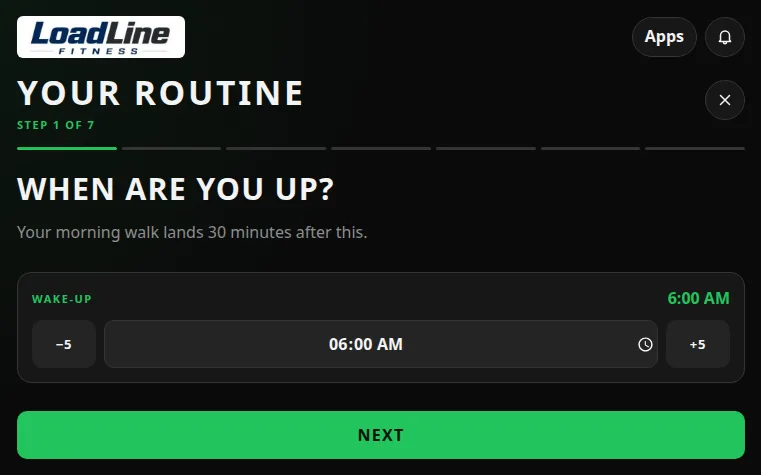
Step 1: When are you up?
- Set your Wake-up time.
- Tap Next.
Your morning walk is planned 30 minutes after you get up.
Step 2: Lights out at…
- Set your Bedtime.
- Tap Next.
Walks always wrap up at least 30 minutes before bed. Bedtime can't be the same as wake-up time.
Step 3: Which days do you work?
- Tap the days you work (Mo, Tu, We, Th, Fr, Sa, Su). Tap again to turn a day off.
- Check the line under the days. It lists your work days.
- Tap Next.
Work days get break, lunch, and after-work walks. Days off get a longer morning walk and an evening walk instead. If you pick no days, every day plans as a day off.
Step 4: Your working hours
- Set Work starts and Work ends.
- Tap Next.
Walkingout never plans a walk during work time, unless it fits inside a break or lunch.
No set hours? Turn on I don't work set hours. This skips the lunch and break questions and takes you straight to the review. Every day will plan like a day off.
Step 5: Lunch
- Set Lunch starts.
- Pick a Lunch length: 30 min, 45 min, 60 min, or Custom.
- With Custom, use − and + to set the length (15 to 120 minutes).
- Tap Next.
Half your lunch becomes a walk. You still eat.
Skip lunch? Turn on I don't take lunch. You won't get a lunch walk.
Step 6: Breaks
- Under Breaks per workday, pick 0, 1, 2, 3, or 4.
- Pick a Break length: 10 min, 15 min, 20 min, or Custom (5 to 45 minutes).
- Check each break time (Break 1, Break 2, and so on). Walkingout spreads them out for you. Change any you need to.
- Tap Next.
Every break becomes a walk. The walk is two minutes shorter than the break, so you're back on time.
Step 7: Your day, planned
This is your review. You'll see:
- Walks: how many walks you get.
- Walk steps: the steps those walks add up to.
- Goal: your daily step goal.
- A timeline of your day with each walk.
If you have both work days and days off, tap Work day or Day off to preview each kind of day.
Want to change something? Tap any row. Walkingout takes you back to that question. When you're done, tap Back to review.
When it looks right, tap Save routine.
After you save, your browser may ask if Walkingout can show notifications. See Reminders.
Your starting numbers
- Step goal: 12,000 steps a day.
- Everyday steps: 3,000. These are steps you take anyway, without a planned walk.
- Walkingout plans walks to cover the rest (12,000 − 3,000 = 9,000 steps).
- It counts about 100 steps a minute of walking.
You can change both numbers. Tap the bell icon (Reminders) at the top right. Scroll to Step goal and Everyday steps.
3. Reading your day
After setup, you land on the Routine screen.
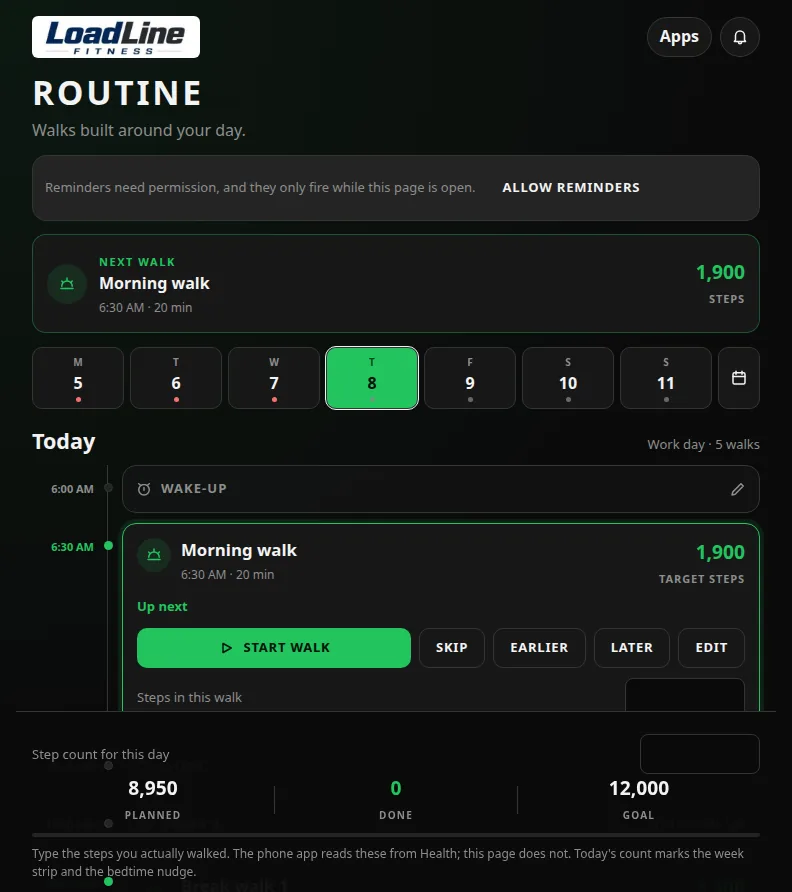
Next walk
The card at the top shows your Next walk for today: its name, start time, length, and step target. Tap it any time to jump back to today.
When there are no walks left today, it says Nothing left on today's routine.
The week strip
Below the next-walk card is a row of days, Monday to Sunday.
- Tap a day to see its plan.
- A green dot means you typed a step count for that day that met your goal.
- A red dot on a past day means the goal wasn't met (or no count was typed).
- Tap the calendar icon at the end of the row to open the month calendar.
Under the strip you'll see the day's name (or Today) and a short line like Work day · 5 walks. If you changed that day, it adds · Edited.
The timeline
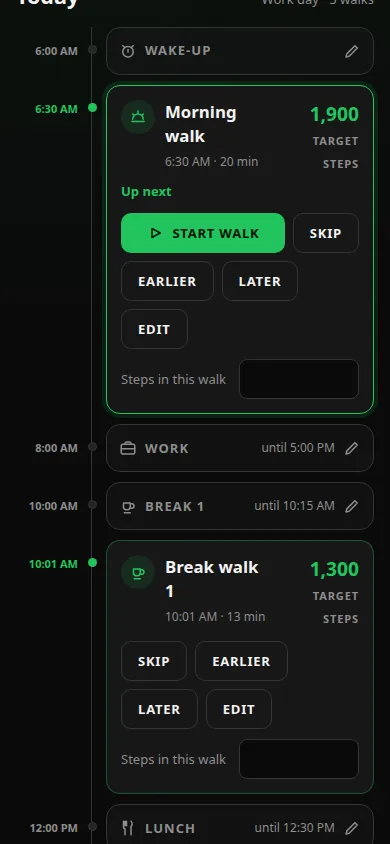
The timeline shows your day in order, top to bottom:
- Your day's blocks in gray: Wake-up, Work, Break 1, Lunch, Bedtime. On a day off, you'll see Day off. Tap any block to change it (see Section 6).
- Your walks in green cards. Each card shows the walk name, start time, length, and Target steps.
Which walks you get
On a work day:
| Walk | When |
|---|---|
| Morning walk | 30 minutes after you wake up (if work starts at least 45 minutes after you wake up) |
| Break walk 1, 2… | Starts 1 minute into each break. Two minutes shorter than the break. |
| Lunch walk | At the start of lunch. About half your lunch. |
| After-work walk | 15 minutes after work ends |
| Evening walk | Only added if your other walks can't cover your goal |
On a day off:
| Walk | When |
|---|---|
| Morning walk | 30 minutes after you wake up |
| Evening walk | About 2 hours before bed |
How targets work
- Walkingout spreads your steps across your walks. Longer walks get more steps.
- A walk Walkingout plans can grow up to 30 minutes. It won't stretch past that.
- Lunch and break walks stay inside your lunch or break.
- If your walks can't cover your goal, you'll see a note like Routine covers 10,500 of 12,000 — add a walk? Tap it to add a walk.
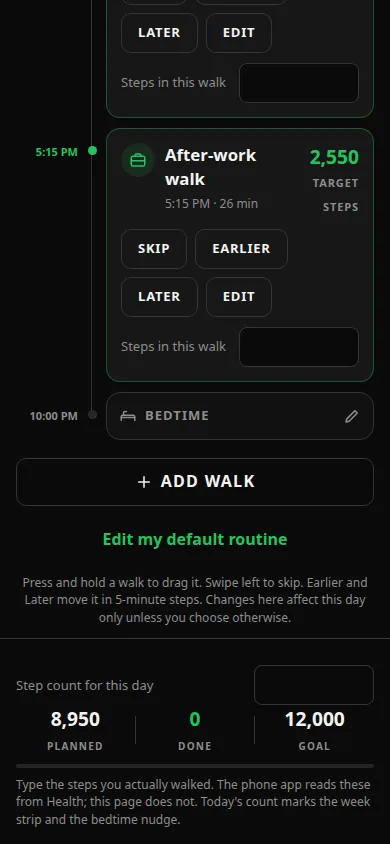
The summary bar
At the bottom of the screen:
- Step count for this day: a box where you type your total steps for the day.
- Planned: steps your walks add up to.
- Done: steps from walks that count as done.
- Goal: your daily step goal.
- A bar that fills as you get walks done.
4. Doing a walk and logging steps
Walkingout can't see your steps. You type them in. Use your phone's step counter, a watch, or a fitness band to get the number.
Do a walk
- Find the walk marked Up next.
- Tap Start walk. Walkingout reminds you to log your steps when you're back. (It does not time or track the walk.)
- Go walk.
- When you're back, check your step counter.
- Type the steps from that walk in Steps in this walk on the walk's card.
When a walk counts as done
- Once your logged steps reach 60% of the target, the walk counts as done. The card shows Steps banked.
- Logged steps only go up. If you type a smaller number, you'll see "Logged steps only go up." To fix a typo, type the right (bigger) number.
- About 5 minutes after a walk's time is over, if you logged less than 60%, it shows Window passed with your steps so far.
- If you didn't log anything, the walk just stays on the timeline.
Make it up
If today's walk shows Window passed, tap Make it up. Walkingout adds a Make-up walk later today (usually about 2 hours before bed). It's sized to the steps you still need, from 10 to 30 minutes.
Log your day's total
- At the bottom, find Step count for this day.
- Type your total steps for the day.
This number marks the dot on the week strip. It also decides if the bedtime nudge fires (see Reminders).
Past days
Past days are view-only. You can still:
- Tap Mark done on a walk you did.
- Tap Skip on a walk you didn't do.
- Type steps in Steps in this walk or Step count for this day.
You can't type steps for a future day.
5. Skipping, moving, editing, and adding walks
These changes affect that one day only.
Skip a walk
- Tap Skip on the walk card. Or swipe the card to the left.
- You'll see "Skipped — steps moved to your other walks."
Its steps get spread across your other walks (each one still stops at 30 minutes).
Changed your mind?
- Tap Undo in the message at the top (it shows for a few seconds), or
- Tap Undo on the skipped walk's card.
Move a walk earlier or later
- Tap Earlier or Later to move it 5 minutes at a time.
- Or press and hold the card, then drag it up or down.
If a spot won't work, Walkingout tells you why:
- "That's before you're up."
- "Too close to bedtime — walks wrap up 30 min before bed."
- "That's work time — drop it in a break or lunch."
- "Another walk is already there."
Edit a walk
- Tap Edit on the walk card (or tap the card itself).
- In Edit walk, you can change:
- Name: give it your own name.
- Starts: the start time.
- Length: 10 min, 15 min, 20 min, 30 min, or Custom (5 to 120 minutes).
- Tap Save walk.
When you set a walk's length yourself, it keeps that length. Walkingout won't stretch or shrink it to fit your goal.
Delete a walk
- Tap Edit on the walk.
- Tap Delete walk.
- Tap Delete walk again to confirm, or Keep it to cancel.
Only that day changes. Its steps move to your other walks.
Add a walk
- Tap Add walk under the timeline. (Or tap the add a walk? note if you see one.)
- In Add a walk, set:
- Name (optional)
- Starts: Walkingout suggests an open time.
- Length: starts at 20 minutes. Pick 10 min, 15 min, 20 min, 30 min, or Custom.
- Tap Add walk.
You'll see "Walk added" with its steps. The target is about 100 steps per minute.
Undo all changes to a day
If you changed a day, you'll see Reset to default under the timeline.
- Tap Reset to default.
- Tap Reset to default again to confirm, or Keep it to cancel.
This clears that day's time changes, added walks, and skips. The walks are rebuilt from your default routine.
6. Changing your schedule: one day or going forward
Your day's blocks (Wake-up, Bedtime, Work, Lunch, Break 1, etc.) can change. You choose if the change is for one day, one weekday, or every day.
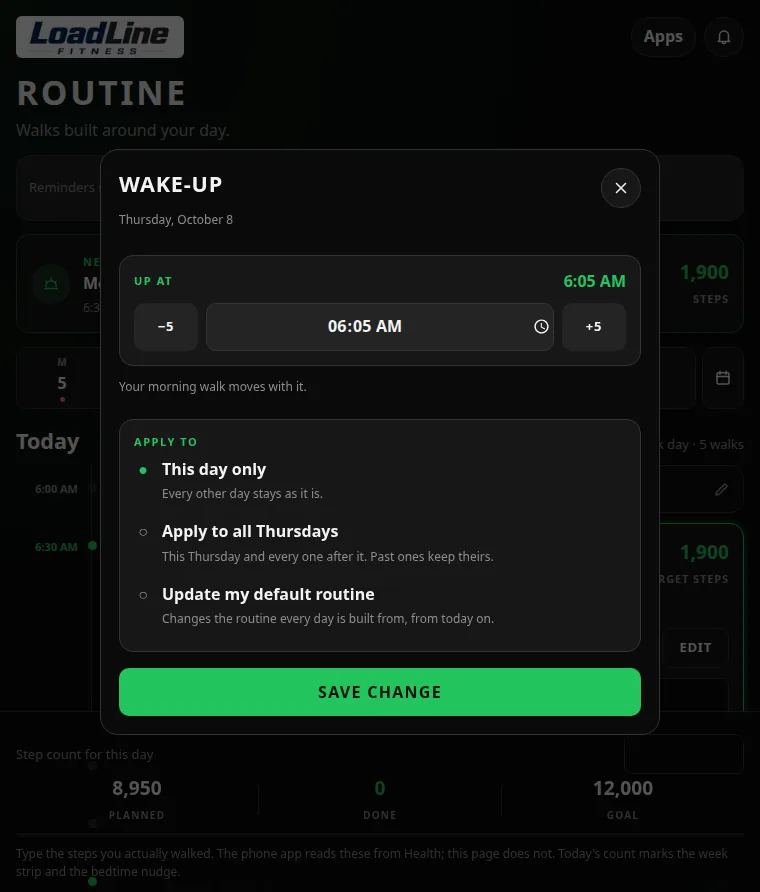
Change a block
- Pick the day on the week strip or calendar.
- Tap the block on the timeline (look for the pencil icon).
- Make your change:
- Wake-up: set Up at. Your morning walk moves with it.
- Bedtime: set Bed at. Walks still finish at least 30 minutes before.
- Work: set Work starts and Work ends, or turn on Day off. The after-work walk moves with the end of work.
- Lunch: set Lunch starts and Length, or turn on No lunch today.
- Break 1, Break 2…: set Break starts and Length. The break walk moves with it.
- Under Apply to, pick one (see below).
- Tap Save change. (If you didn't change anything, the button says Done.)
The three "Apply to" choices
| Choice | What it does |
|---|---|
| This day only | Changes just this date. Every other day stays as it is. (This is picked for you.) |
| Apply to all [day]s (for example, Apply to all Thursdays) | Changes this day and every one of that weekday after it. Past ones keep theirs. |
| Update my default routine | Changes the routine every day is built from, from today on. |
After you save, you'll see one of these: "Changed for this day only.", "Changed for every Thursday from here on.", or "Default routine updated."
Redo your whole routine
Tap Edit my default routine under the timeline. This opens the 7 setup steps again with your current answers. Change what you need, then tap Save routine.
Breaks: on a single day you can change a break's time and length. To change how many breaks you take, use Edit my default routine.
7. Day off and the calendar
Mark a day off
- Pick the day.
- Tap the Work block.
- Turn on Day off.
- Under Apply to, pick This day only (or a wider choice).
- Tap Save change.
That day now plans like a weekend: a longer morning walk and an evening walk, no break walks.
Switch a day off back to a work day
- Tap the Day off block (it says Tap to switch on).
- Turn off Day off.
- Check the work times, pick Apply to, and tap Save change.
If you chose I don't work set hours in setup, every day is already a day off, so you won't see these blocks.
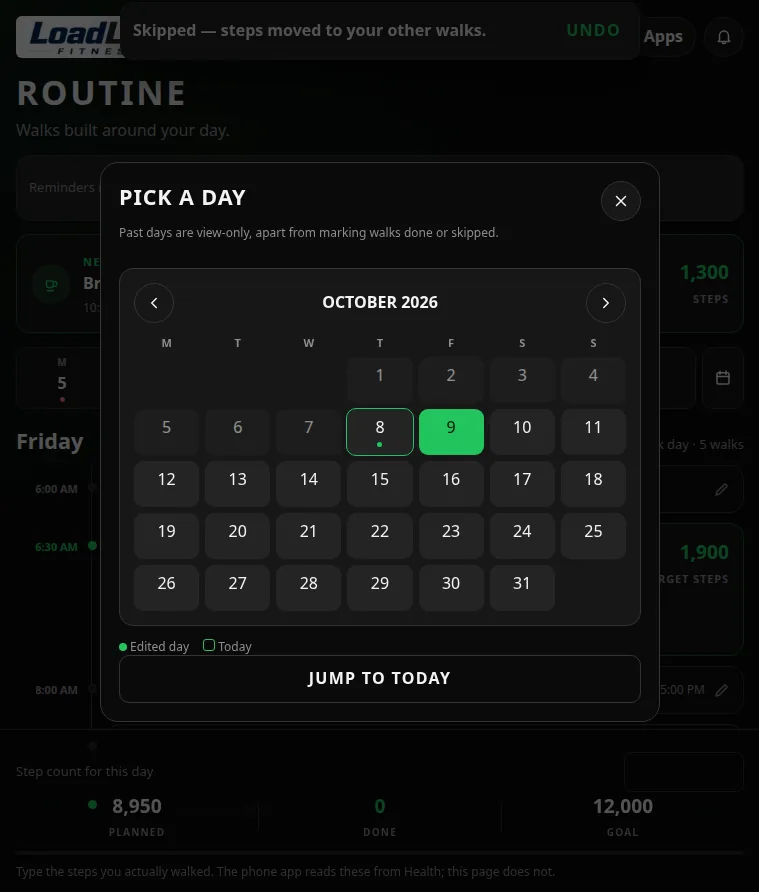
Use the calendar
- Tap the calendar icon at the right end of the week strip.
- Pick a day opens. Use the arrows to go to the previous or next month.
- Tap a date to open that day.
- Tap Jump to today to come back to today.
Calendar marks:
- A green dot under a date = Edited day (you changed something on that day).
- A ring around a date = Today.
- Past days are view-only, apart from marking walks done or skipped.
8. Reminders and their limits
Walkingout can show a heads-up 5 minutes before each walk, like: "Lunch walk in 5 — 1,500 steps."
Turn reminders on
- Tap the bell icon (Reminders) at the top right.
- Make sure Walk reminders is on. (It's on to start.)
- If you see Allow reminders, tap it. Then allow notifications when your browser asks.
Choose which walks remind you
In the Reminders panel, turn each one on or off:
- Morning walk
- Break walks
- Lunch walk
- After-work walk
- Evening walk
- Walks I add
- Bedtime nudge: fires 2 hours before bed, only if you're still short of today's goal. It uses the number in Step count for this day.
Skipped walks stay quiet.
The limits (please read)
- The page must be open. Reminders only fire while Walkingout is open in your browser. Browsers can't schedule them after you leave.
- Your phone may pause the page. If the screen locks or you switch apps, the browser may pause the page and the reminder may not show.
- You must allow notifications. If you blocked them, turn them back on in your browser's site settings.
- Some browsers can't show them at all. If so, you'll see "This browser can't show system reminders." The timeline still works whenever the page is open.
Tip: Treat reminders as a bonus. Glance at your Next walk card, or set a phone alarm for walks that matter most.
9. Your data and privacy
Where your routine lives
- Your routine, step logs, goal, and settings are saved in this browser, on this device.
- There is no account. Nothing is sent to a server.
- LoadLine Fitness can't see your routine, and can't recover it for you.
How you could lose it
Your routine will be erased if you:
- Clear your browser's history, cookies, or site data.
- Use a private or incognito window (it's wiped when you close it).
- Uninstall the browser or reset the phone.
How to keep it safe
- Always open Walkingout in the same browser on the same device.
- Don't use private or incognito mode for Walkingout.
- If you clear browser data, skip "site data" for loadlinefitness.com if your browser lets you.
- Add it to your home screen (see Section 10), and keep using that icon.
Switching phones or browsers
Walkingout has no export, import, backup, or sync. A new phone, a new browser, or a computer starts empty. You'll need to run setup again. It only takes a couple of minutes.
Starting over on purpose
There's no "delete everything" button. You can:
- Use Edit my default routine to redo your answers, or
- Clear the site data for loadlinefitness.com in your browser settings. This erases everything, and you'll see No routine yet.
10. Adding Walkingout to your home screen
Walkingout can be added to your home screen. It then opens in its own window, like an app, with the name Walkingout.
iPhone or iPad (Safari):
- Open Walkingout in Safari.
- Tap the Share button.
- Tap Add to Home Screen.
- Tap Add.
Android (Chrome):
- Open Walkingout in Chrome.
- Tap the ⋮ menu.
- Tap Install app or Add to Home screen.
- Follow the prompt.
Important: On some phones (iPhones especially), the home-screen app keeps its own storage, separate from the browser tab. A routine you made in a Safari tab may not show up in the home-screen icon. Pick one way to open Walkingout and stick with it. If you plan to use the icon, add it first, then do setup from the icon.
Reminders still need the page open, even from the home screen.
11. FAQ and troubleshooting
Is it really free? Do I need an account?
Yes, it's free. No account, no login.
Why do I have to type my steps?
A website can't read your phone's step counter or health app. Type the number from your phone, watch, or band.
I typed the wrong step number. How do I fix it?
Logged steps for a walk only go up. If you typed too few, type the right, higher number. If you typed too many, there's no way to lower it for that walk. Tap Reset to default for the day to start that day over (this also clears that day's other changes and logged steps).
My routine is gone.
Your browser's data was likely cleared, or you're in a different browser, a private window, or the home-screen icon instead of the tab (or the other way around). There's no backup. Run setup again.
I didn't get a reminder.
Check that: the page was open, Walk reminders is on, that walk type is on, and notifications are allowed for the site. Phones often pause pages in the background.
Why can't I move a walk where I want?
Walks can't be before you wake up, inside the last 30 minutes before bed, during work time (outside a break or lunch), or on top of another walk. The message tells you which.
Why is a walk 30 minutes when I expected less?
When steps from a skipped walk need a home, the other walks grow, up to 30 minutes each. Set a length yourself with Edit if you want it to stay put.
I see "Routine covers ... — add a walk?"
Your walks can't cover your goal at 30 minutes each. Tap the note to add a walk, lower your Step goal, or raise Everyday steps in the Reminders panel if you're more active than 3,000 steps outside your walks.
Where do I change my step goal?
Tap the bell icon (Reminders). Scroll down to Step goal and Everyday steps.
Can I change a past day?
Past days are view-only. You can still mark walks done or skipped, and log steps.
Can I use it on my computer and my phone?
Yes, but each one keeps its own separate routine. They don't sync.
Does it work without internet?
After your first visit, parts of the app may load from your browser's cache. Plan on needing a connection to open it.
12. Safety note
Walkingout is a planning tool for wellness and education. It is not medical advice.
- If you have health concerns, check with your doctor before starting a new activity routine.
- Walk at a pace that feels right for you. Stop if you feel pain, dizziness, or shortness of breath.
- In hot weather, walk in cooler hours, drink water, and wear sun protection.
- Watch for traffic, and stay aware of your surroundings.
- Step targets are estimates (about 100 steps a minute). Your numbers may differ.
LoadLine Fitness, Queen Creek, AZ. Load the Standard. Live the Life.